
Desmos Scientific Calculator: A Complete Student's Guide (2026)
A complete student's guide to the Desmos scientific calculator: layout, shortcuts, exam mode, accessibility and how it compares to other free online scientific calculators.
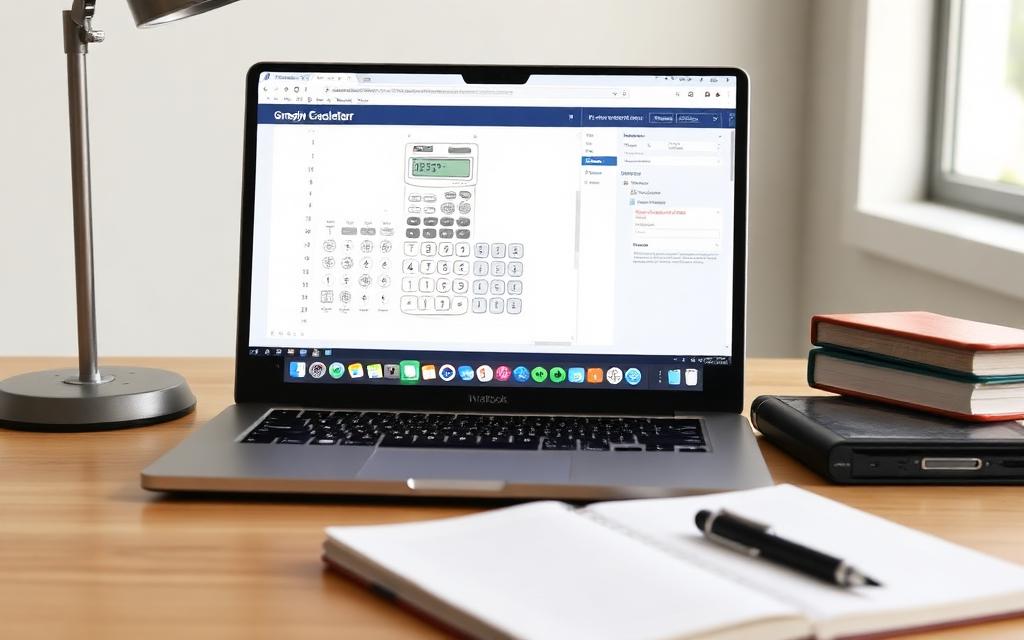
If you've taken a math class in the last few years, you've almost certainly bumped into the Desmos scientific calculator. It's free, it runs in the browser, it works on phones and Chromebooks, and a lot of standardized tests now ship it as the built-in calculator. But most students only ever use about a third of what it can do. This guide walks through the Desmos scientific calculator from the ground up — what each part of the screen does, the shortcuts worth memorizing, how exam mode works, and where it differs from a classic handheld like the Casio fx-991 or a free web tool like the Scientificalc scientific calculator.
What is the Desmos scientific calculator?
Desmos makes three calculators: a four-function one, a scientific one, and a graphing one. The scientific calculator is the middle tier. It looks like a handheld calculator but lives in your browser. You get trig functions, logs, exponents, roots, factorials, parentheses, fractions, memory keys, and a degree/radian toggle — everything you'd expect from a mid-range scientific calculator, with none of the shopping, batteries, or "where did I put it" energy.
It's used in real exams too. The College Board's Bluebook app and several state assessments embed the Desmos calculator directly. That's a big reason teachers recommend it: the calculator you practice on is the calculator you'll sit the exam with.
The layout, in one screen
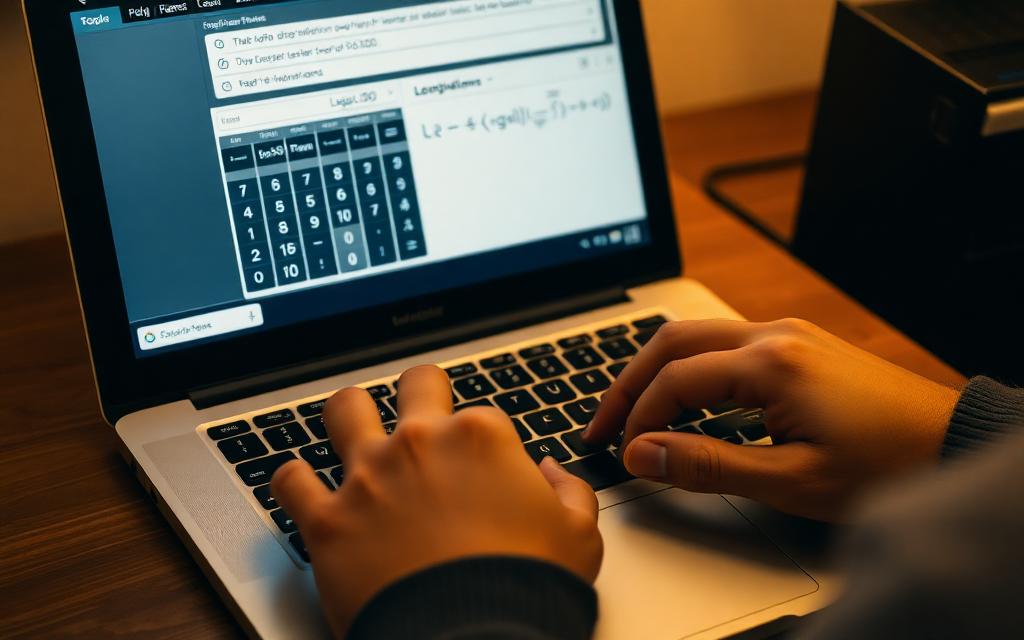
The Desmos scientific calculator screen is split into three areas. On the left you have the expression history — every calculation you've typed scrolls up here, so you can click an earlier answer to reuse it. In the middle is the entry line, where your current expression appears in proper math notation (fractions stack, exponents shrink, square roots get a bar). On the right is the keypad, grouped into numbers, basic operators, functions, and a second-function layer for things like inverse trig and exponentials.
Two small but important controls live at the top: the DEG / RAD toggle and the keypad mode selector. Confusing these two is the single most common source of "my calculator is broken" panic on test day. It isn't — you're just in the wrong angle mode.
Shortcuts every student should memorize
The Desmos scientific calculator has a real keyboard layer, which means you can fly through problems without ever touching the mouse. A handful of shortcuts will save you hours over a semester:
^ for exponents, / to create a stacked fraction, sqrt then Tab for a square root, pi for π, theta for θ, Enter to evaluate, and the up arrow to scroll back through previous entries. Typing sin(, cos(, or log( auto-opens the function. Press Tab to escape the denominator of a fraction or the radicand of a root — that one keystroke fixes more "weird answers" than anything else.
Degrees vs radians: read this twice
The Desmos scientific calculator defaults to radians, which is the correct mode for calculus and most physics. But high school trig classes work mostly in degrees. If you ask Desmos for sin(30) in radian mode, you'll get about −0.988, not 0.5, and you'll spend ten minutes thinking you misread the problem. Click the wrench, choose your angle mode, and double-check it before every test. Pair this habit with practice on the Scientificalc scientific calculator, which has the same DEG/RAD toggle and is great for warm-ups when you don't want to open a new tab.
Working with fractions, roots and exponents
One of the best things about the Desmos scientific calculator is that it shows your expression the way your textbook does. Type 3/4 + 1/6 and you'll see two stacked fractions, not 3/4+1/6 on a single line. Press equals and Desmos returns the exact answer (11/12) with a button to flip to the decimal form. That exact-form behaviour is huge for algebra, where rounding early can quietly ruin a multi-step problem.
For roots, type sqrt( for a square root or nthroot( for any other index. For exponents, the caret ^ works for everything from 2^10 to e^x. Scientific notation uses EE: typing 6.02 EE 23 gives you Avogadro's number without 23 zeros of typo risk.
Memory, ANS, and chaining calculations
Desmos doesn't have classic M+/M− memory keys, and it doesn't need them. Every previous result sits in the history pane on the left — click it to drop it into your current expression. You can also reference the most recent answer by typing ans. This is perfect for chained problems: compute a discriminant, then type sqrt(ans), then build the quadratic formula on top. No copying, no transcription errors. For comparison, the Scientificalc scientific calculator uses a dedicated Ans key for the same purpose, which is handy when you prefer a physical-feeling button layout.
Exam mode and the Bluebook calculator
On the digital SAT, PSAT and many AP exams, the Desmos calculator is built into the Bluebook testing app. It's not the regular web version — internet access is blocked, the interface is locked down, and you can't paste in saved expressions. The good news is that the keys, shortcuts and behaviour are identical to what you practice with at home. That's why teachers push Desmos so hard: there's zero context switch on test day.
The practical takeaway: do at least a few timed practice sets using only the Desmos scientific calculator, no handheld backup. You'll discover which shortcuts you actually remember under pressure, and which ones you only "know" when you're calm.
Accessibility features worth knowing
The Desmos scientific calculator is one of the most accessible math tools on the web. It supports full keyboard navigation, screen readers via ChromeVox and VoiceOver, a high-contrast theme, and a "braille" mode that outputs Nemeth or UEB code. If you or a classmate has an IEP that includes a screen reader, Desmos will almost certainly be smoother than a third-party handheld. This is also one of the few areas where Desmos beats nearly every native app on the market.
Desmos scientific calculator vs other free online calculators
Desmos is excellent, but it isn't the only option. If you're comparing the Desmos scientific calculator to other free web tools — including the Scientificalc scientific calculator — here's an honest breakdown:
Choose Desmos if you're prepping for the digital SAT, you want the best accessibility story, or your teacher uses Desmos in class. Familiarity is a real advantage on exam day.
Choose a lightweight web calculator like Scientificalc if you want a fast, no-loading-screen tool for quick computations, a layout that mimics a physical Casio, or a calculator that works offline once the page has loaded. Scientificalc also has zero tracking, no account prompts, and a smaller mobile footprint — handy on slow networks.
The two pair well. Use Desmos for graphing, exam practice and longer problem sets, and keep the Scientificalc scientific calculator open in another tab for one-off arithmetic, unit conversions, or when you just want a calculator that opens in under a second.
Common mistakes (and quick fixes)
1. Forgetting the angle mode. Always check DEG vs RAD before a trig question. 2. Skipping parentheses around negatives. Desmos parses -3^2 as -(3^2) = -9; type (-3)^2 if you mean 9. 3. Hitting Enter inside a fraction. Use Tab to leave the denominator first. 4. Trusting a decimal too early. Keep the exact form until the final step, then convert. 5. Ignoring history. If you used a value three lines up, click it instead of retyping — fewer keystrokes means fewer typos.
A short workflow that actually works
Here's a routine that pays off across a whole semester. Read the question, write the equation on paper first, then translate to the Desmos scientific calculator in one clean expression. Use parentheses generously. Keep the exact form until the very last step. If a question repeats a value (like a coefficient), store it once using a = and reuse the variable. Then sanity-check the magnitude — if you expected a number around 50 and got 5,000, the problem is almost always a missing parenthesis or a wrong angle mode, not your math.
Final thoughts
The Desmos scientific calculator earned its reputation honestly. It's fast, free, accessible, and identical to the calculator inside the biggest digital exams in the US. Learn its shortcuts, respect the DEG/RAD toggle, and use the history pane like a scratchpad. And when you just need a quick answer without opening a full app, the Scientificalc scientific calculator is one tab away with the same trig, log and exponent functions you've been practicing. Two good tools beat one — use whichever fits the moment.
Try it yourself
Open the Scientificalc scientific calculator and work through the examples above — no install, no sign-up.